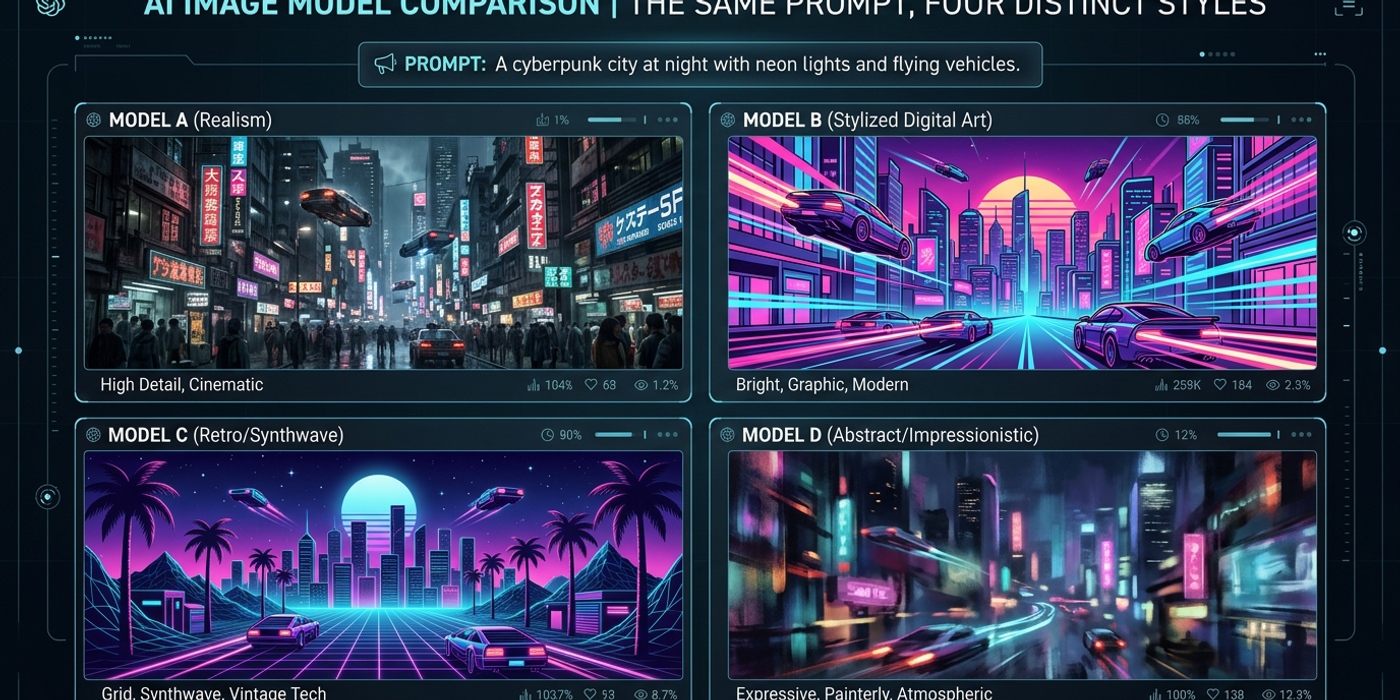
New AI image models like ChatGPT Images 2.5 and Ideogram 4.0 need different prompting. Here's how to adapt your prompt strategy for late 2026.
The AI image generation landscape has shifted dramatically since mid-2026. Models like ChatGPT Images 2.5, xAI Imagine 2.0, Ideogram 4.0, and Qwen-Image-2.1 have joined the ecosystem — and each one responds differently to prompts. The prompting techniques that worked for Stable Diffusion and early FLUX models don't always transfer.
This guide covers the prompting strategies that work best with the latest generation of AI image models, so you can get consistent, high-quality results every time.
Why Late-2026 Models Need Different Prompts
The newest image generation models operate on fundamentally different architectures than their predecessors. ChatGPT Images 2.5 uses a transformer-based approach with separate "Sketch" and "Template" modes. Ideogram 4.0 is fully open-weight and natively supports 2K resolution output. Qwen-Image-2.1 runs on consumer GPUs. xAI Imagine 2.0 introduces built-in editing capabilities.
Each of these architectural differences changes how the model interprets your prompt. A prompt written for one model may produce completely different results in another — even when using the exact same words.
Understanding Model-Specific Prompting
ChatGPT Images 2.5: Sketch Mode vs Template Mode
OpenAI's latest image model offers two distinct modes that require different prompt structures:
Sketch Mode works best with short, descriptive prompts focused on composition and subject. Think of it as giving directions to a human artist — "a minimalist logo for a tech startup, clean lines, blue and white, no text" — rather than a technical specification.
Template Mode excels with structured prompts that define layout, elements, and style separately. A template prompt might specify "Background: gradient sunset. Subject: silhouette of a runner. Style: inspirational poster, bold typography." This separation helps the model respect each component without bleeding between them.
Ideogram 4.0: Open-Weight Precision
Ideogram 4.0's open-weight architecture handles technical and artistic language differently than closed models. It responds particularly well to:
- Composition-first prompts that describe spatial relationships: "a cat sitting on a windowsill, city skyline visible through the glass, morning light casting long shadows" - Style anchoring using artist references: "in the style of Hayao Miyazaki, soft watercolor textures, hand-painted feel" - Negative prompting to remove unwanted elements: Ideogram 4.0 respects negative prompts more literally than most models, making it ideal for precise exclusion work
xAI Imagine 2.0: Built-In Editing Changes Everything
xAI's Imagine 2.0 introduces editing capabilities that change how you approach the initial prompt. Since you can modify specific regions of an image after generation, your first prompt can focus on getting the overall composition right, with the understanding that details can be refined later.
This means shorter initial prompts — establish the scene, then iterate with targeted edits. "A cyberpunk street market at night, neon signs, rain-slicked pavement" is enough to start; you can add specific shop signs or adjust lighting in post-generation editing.
Qwen-Image-2.1: Bilingual and Hardware-Aware
Qwen-Image-2.1's ability to run on consumer GPUs makes it accessible for local workflows, but its prompting quirks differ from cloud-based models:
- Bilingual prompts work well — mixing English and Chinese in the same prompt produces coherent results that blend both cultural aesthetics - Resolution-aware prompting — since it supports flexible output sizes, specifying exact dimensions in the prompt helps the model optimize detail distribution - Longer prompts are better — unlike some models that lose coherence with very long prompts, Qwen-Image-2.1 handles detailed multi-sentence descriptions well
Universal Prompting Principles That Still Apply
Despite the model-specific differences, some fundamentals remain unchanged:
Be specific about what you want, not what you don't want. "A photorealistic bowl of ramen with chashu, soft-boiled egg, and nori" outperforms "A bowl of ramen, no fake-looking ingredients" every time.
Use weight modifiers sparingly. Most late-2026 models have built-in prompt optimization that makes manual weighting less necessary. Let the model interpret emphasis naturally.
Iterate, don't rewrite. The best prompts are refined through multiple generations, not composed in one shot. Each model's output teaches you how to adjust your language for next time.
Building a Cross-Model Prompting Workflow
For creators who use multiple platforms, a unified prompting strategy saves time and improves consistency:
1. Start with a core prompt that describes the subject, action, and environment 2. Add model-specific modifiers for the platform you're using (mode selection, style anchors, resolution hints) 3. Run a test generation at low resolution to check composition 4. Refine based on the model's interpretation 5. Scale up to full resolution once the prompt is dialled in
This workflow works whether you're using ChatGPT Images 2.5 for quick concepts, Ideogram 4.0 for high-res output, or Qwen-Image-2.1 for local batch processing.
Frequently Asked Questions
Q: Do I need to learn different prompting for every model? A: Not from scratch. Most prompting skills transfer between models, but each platform has unique features worth learning. Start with universal principles, then add model-specific techniques as needed.
Q: Which model is easiest to prompt for beginners? A: ChatGPT Images 2.5 in Sketch Mode is the most forgiving for newcomers. Its natural language understanding handles vague or incomplete prompts better than most alternatives.
Q: How do I know which mode to use in ChatGPT Images 2.5? A: Use Sketch Mode for single-subject images with a clear focal point. Use Template Mode when you need specific layout control, multiple elements, or a defined background-foreground relationship.
Q: Does Ideogram 4.0 really handle negative prompts better? A: Yes. Ideogram 4.0's open-weight architecture processes negative prompts with higher precision than most closed models. Use negative prompts for removing specific objects, colors, or stylistic elements you want to exclude.
Q: Can I use the same prompt across all these models? A: You can, but results will vary. A prompt optimized for one model may produce underwhelming results in another. For consistent quality, maintain a core prompt and adapt the framing for each model's strengths.
Q: What's the biggest mistake creators make with new image models? A: Assuming the old prompting rules still apply. Each new generation of models changes the prompt-model relationship. The biggest time saver is running a few test prompts on a new model before committing to a full workflow.